
Send Orders & Credit Notes Manually to Loyalista
Orders and credit notes should generally be transmitted to Loyalista via the corresponding event procedures. For more information, see our manual for setting up the PlentyONE plugin.
However, the plugin also gives you the option to manually transmit orders and credit notes to Loyalista using one of two methods:
1. Send Orders and Credit Notes via Order IDs
In your PlentyONE system, navigate to Plugins >> Plugin set overview and select your current plugin set. Open the Loyalista plugin and select the Action option (Figure 1).
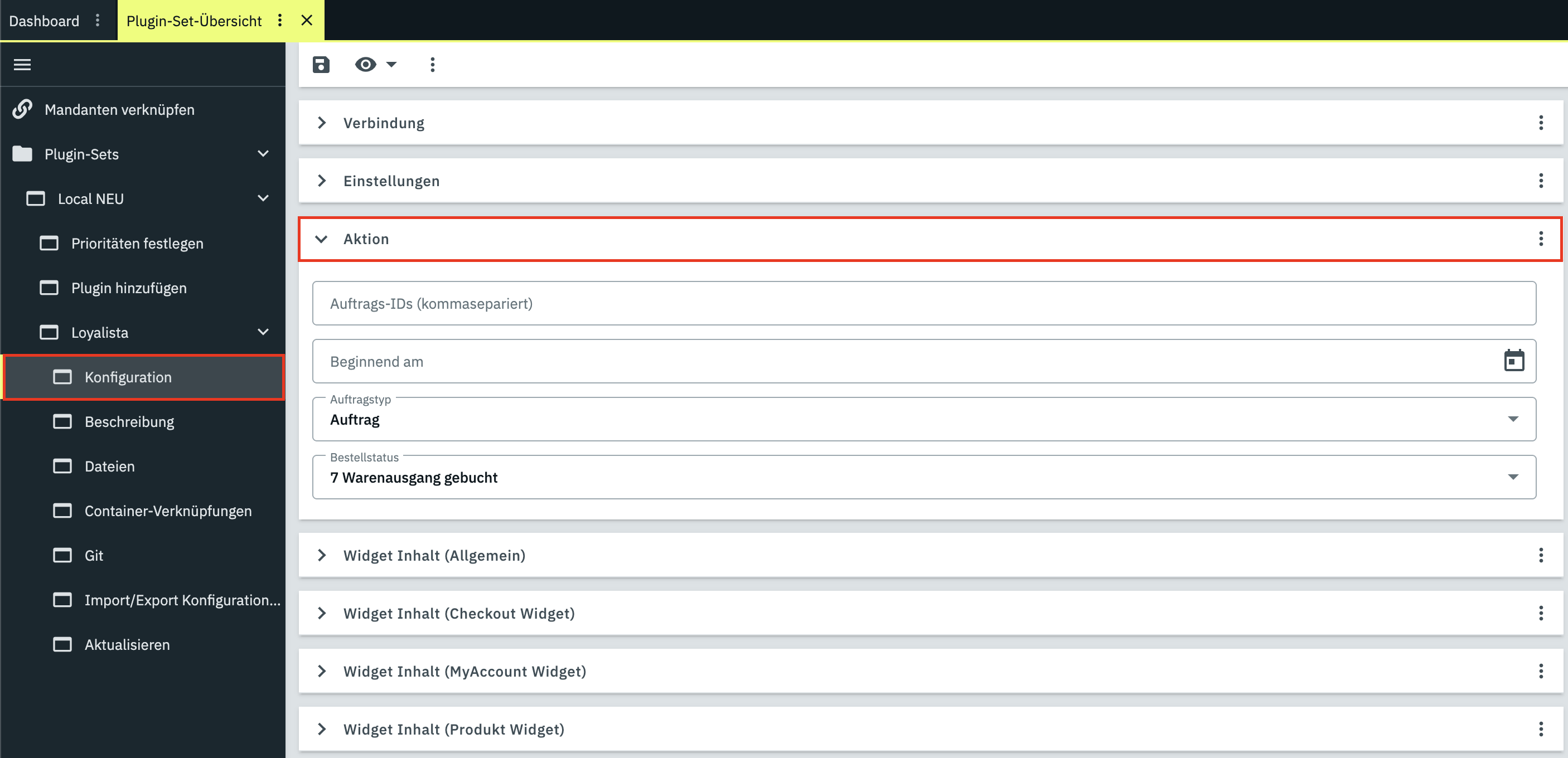
In the input field Order IDs (comma-separated), you can enter any number of order IDs. These will be transmitted to Loyalista via a cron job every 60 minutes. Transmission may take up to 60 minutes. The transmission occurs independently of order status, order type, or other parameters.
The plugin interprets the order types Credit note, Return, Repair, and Warranty as returns. Points credits and point redemptions are reversed accordingly. When configuring automated order events, you can customize this logic.
2. Send Orders and Credit Notes via Filters
If you would like to reward customers who registered for your loyalty program by a certain date by retroactively granting points for past orders, you can achieve this via the Action section in the plugin settings.
In your PlentyONE system, go to Plugins >> Plugin set overview and select the active plugin set. Open the Loyalista plugin and select the Action option (Figure 1). Configure the desired filter criteria as explained in Table 1. All orders matching the selected criteria will be transmitted to Loyalista via the background cron job within 60 minutes.
The plugin interprets credit notes, returns, repairs, and warranties as returns, reversing points credits and redemptions accordingly.
| Filter | Explanations |
|---|---|
| Starting Date | Enter the desired date from which orders are to be sent with the other filter options. |
| Order Type | Select the desired order type(s) to be sent to Loyalista. |
| Order Status | Select the desired order status(es) to be sent to Loyalista. |
Was this article helpful?
Let us know your feedback to help us improve our articles.